Smart Trip Auto Reload
Auto Reload ensures that you won't have to worry about reloading a Smart Trip. Auto Reload lets you manage the funds on your card to automatically renew passes that are close to expiration or add Stored Value when the balance is low.
Products
Auto Reload is available for the following products:
- Stored Value
- 7-Day Unlimited Pass
- 7-Day Short Trip Unlimited Pass
- 7-Day Regional Bus Pass
- Monthly Unlimited Pass
- Regional Transit Partner Passes: PRTC Monthly Pass, DASH Monthly Pass, Ride On Monthly Pass, MTA 7-Day Pass, MTA 31-Day Pass, MTA Express 31-Day Pass
Stored Value and passes configured for Auto Reload will occur when the minimum threshold is reached.
Minimum Thresholds
| Stored Value (Full Fare / Senior / Disabled) | $10 |
| 7-Day Passes (Bus / Rail) | 3 days remaining |
| Monthly Unlimited | 7 days remaining |
Minimum thresholds cannot be changed
Manage Auto Reload
To manage auto reload, log in to your Smart Trip account and select the card you wish to manage. Don't have a Smart Trip account? Create one.
Activate Auto Reload
Once you've selected the card:
- Select Add Value or Add Pass.
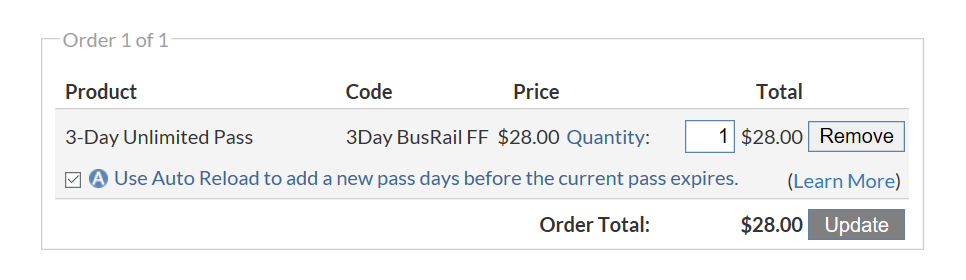
- If the stored value or pass is eligible for Auto Reload, an option will be presented in the shopping cart prior to checkout.
- Check the box (Use Auto Reload to…) and proceed through checkout.
Please note:
- Online purchases must be loaded to your Smart Trip by tapping your plastic Smart Trip or mobile device at a rail fare gate, bus fare box, or fare vending machine.
- Purchases are available to load after 1 business day at Metro Rail stations and after 3 business days on Metro Bus.
- Your purchase must be loaded within 30 days or it will expire.
- If your Auto Reload expires, please call 1-888-SMARTRIP (762-7874) for assistance (M - F, 7 am - 8 pm).
Adjust the stored value amount
Once you've selected the card:
- From the Your Account page select the Smart Trip that has Auto Reload activated.
- Click the Details/Edit/Cancel link next to the Auto Reload Stored Value that you want to adjust.
- From the View Auto Reload Details page, find the Manage Your Auto Reload section and click Update Auto Reload Amount. Continue to follow the prompts to complete the Stored Value adjustment.
Please note: The adjustment will take effect the next time your Smart Trip reaches the minimum threshold and you tap your Smart Trip or mobile device over a target at a Metro Rail fare gate, bus fare box, or fare vending machine.

Cancel Auto Reload
Once you've selected the card:
- From the Your Account page select the Smart Trip that has Auto Reload activated.
- On the Card Summary page, select the Manage Auto Reloads link from the Card Management section on the right side of the page.
- Click Details/Edit/Cancel next to the Auto Reload Stored Value or pass that you want to cancel (see below).
- Click Cancel Auto Reload from the Manage Auto Reload section.
- Follow the prompts to complete the cancellation.
Please note:
- Cancellation will be complete in 14 days.
- You will be responsible for any Auto Reload amount charged to your credit card within five days of beginning the cancellation process.
- To avoid any unexpected additional charges, please review the Auto Reload thresholds for fare products.
Update billing information
Once you've selected the card:
- From the Your Account page select the Smart Trip that has Auto Reload activated.
- On the Card Summary page, click the Manage Auto Reloads
link from the Card Management section on the right side of the page. - Click Change Billing Information and follow the prompts to complete the change.